Tag: Checkra1n jailbreak

How to Jailbreak iOS 14.7 ~ iOS 14.7.1 Using Checkra1n on iPhone or iPad

Here’s how to use the very popular Checkra1n to jailbreak iOS 14.7 ~ iOS 14.7.1 on some older Apple devices.

Jailbreak Compatible Devices:

  • iPhone 6s, 6s Plus, and SE
  • iPad 5th generation
  • iPad Air 2
  • iPad mini 4
  • iPad Pro 1st generation

Preparations Before Jailbreaking:

  • Delete any iOS 14.7 ~ iOS 14.7.1 OTA update file from Settings > Storage and reboot your device before attempting to jailbreak it.
  • A computer running macOS.
  • The latest version of iTunes installed if using a Mac running anything prior to macOS Catalina.
  • Make sure to create a backup of all important data on your device before proceeding with the jailbreaking steps.

Step 1:

Open your browser and visit checkra.in and download the latest version of the Checkra1n app for your Mac computer.
checkra1n-applications

Step 2:

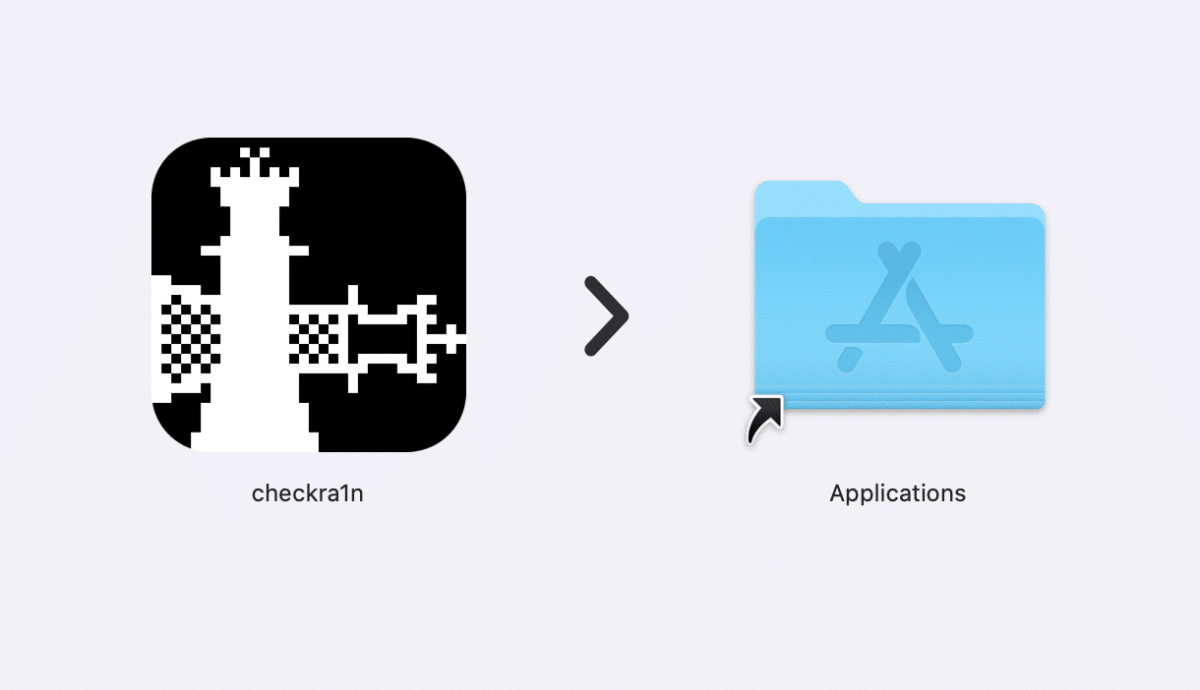
Take the downloaded DMG file and install the checka1n app to your /Applications folder.

Step 3:

If the built-in macOS security settings do not allow your Mac to open the app, you need to follow the steps below. If everything opens without any problems, you can skip and continue to step 4:

  • Head into the System Preferences app and select the Security & Privacy option.
  • Select “Open Anyway” followed by “Open” and enter your administrator password when prompted.
  • Try to run the Checkra1n app again and you shouldn’t have any issues.

Step 4:

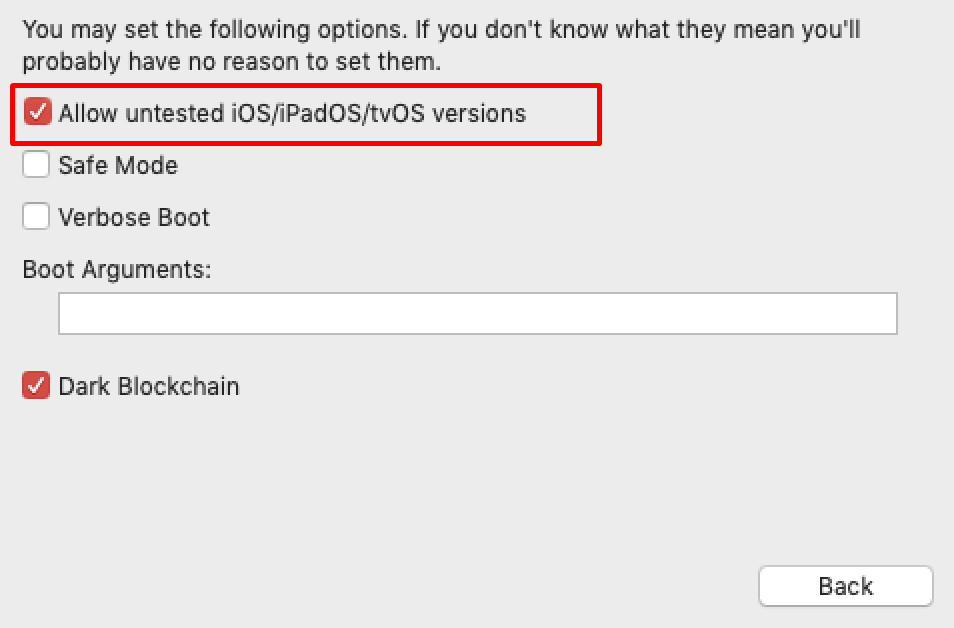
Launch the Checkra1n app from your /Applications folder. Enter the Checkra1n option and check the “Allow untested iOS/iPadOS/tvOS version” option. Now, choose Back.
Run Checkra1n


Allow untested iOS

Step 5:

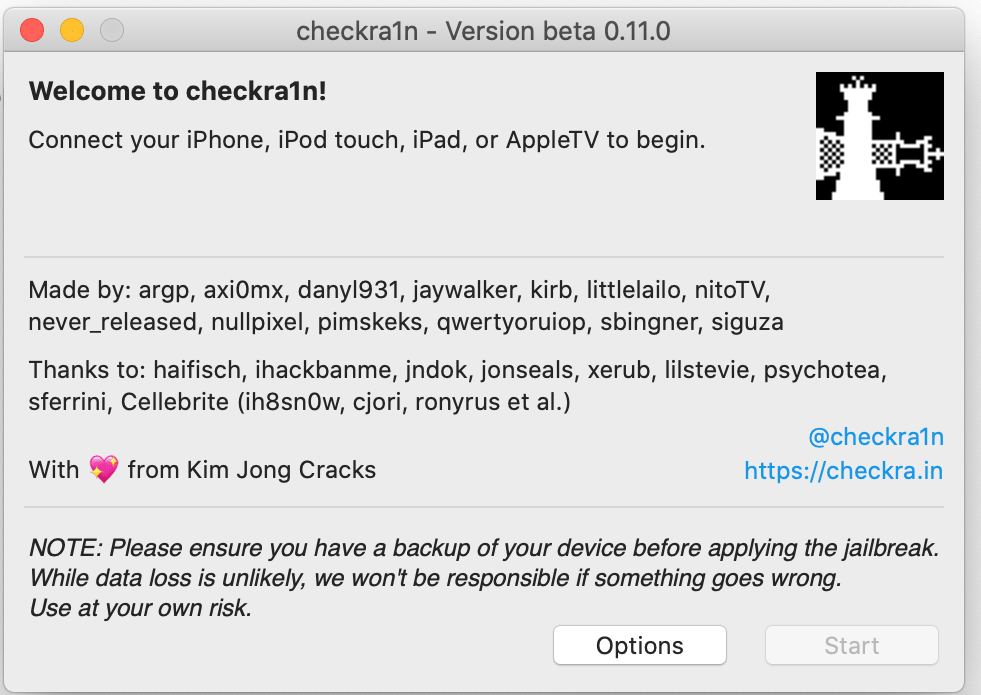
Connect your device to your Mac with the necessary cables, and click the “Start” option. Select “OK” and pay attention to the Checkra1n app.

Step 6:

Select “Next” and follow the instructions provided to you by the Checkra1n app to put your device into DFU mode.
Cydia

Step 7:

Once the DFU mode is activated and detected, Checkra1n will detect the device and start the jailbreak process. This will restart your iPhone multiple times, so keep in mind that this is normal and is a required part of this process.

How to Jailbreak iOS 14.6 Using Checkra1n on iPhone/iPad

Here’s how to use Checkra1n to jailbreak iOS 14.6 on a handful of older Apple devices.

Jailbreak Compatible Devices:

  • iPhone 6s, 6s Plus, and SE
  • iPad 5th generation
  • iPad Air 2
  • iPad mini 4
  • iPad Pro 1st generation

Preparations Before Jailbreaking:

  • Delete any iOS 14.6 OTA update file from Settings > Storage and reboot your device before attempting to jailbreak it.
  • A computer running macOS.
  • The latest version of iTunes installed if using a Mac running anything prior to macOS Catalina.
  • Make sure to create a backup of all important data on your device before proceeding with the jailbreaking steps.

Step 1:

Jump on over to checkra.in and download the latest version of the Checkra1n app for your Mac machine.

checkra1n-applications

Step 2:

Find the downloaded DMG file and install it on your /Applications folder on the Mac.

Step 3:

If Apple’s built-in security settings won’t allow your Mac to open the app you will need to follow the steps below. If everything opens without any issues you can then skip and move on to step 4:

  • Head into the System Preferences app and select the Security & Privacy option.
  • Select “Open Anyway” followed by “Open” and enter your administrator password when prompted.
  • Try to run the Checkra1n app again and you shouldn’t have any issues.

Run Checkra1n


Allow untested iOS

Step 4:

Launch the Checkra1n app that you have previously installed. Head into the Checkra1n Options and check the “Allow untested iOS/iPadOS/tvOS versions” option. Now, select Back.

Step 5:

Connect your device to the Mac using the provided Lightning cable and then click the Start button and select OK.

Step 6:

Choose Next and then follow the instructions that the Checkra1n app provides to you to get your device into DFU mode.

Step 7:

As soon as DFU Mode is activated and detected, Checkra1n will detect the device and start the jailbreak process. This will restart your iPhone/iPad several times, so please keep in mind that this is normal and is a required part of this process.

Cydia

How to Jailbreak iOS 14.5 ~ iOS 14.5.1 Using Checkra1n on iPhone or iPad

Here’s how to use Checkra1n to jailbreak iOS 14.5~ iOS 14.5.1 on a handful of older Apple devices.

Jailbreak Compatible Devices:

  • iPhone 6s, 6s Plus, and SE
  • iPad 5th generation
  • iPad Air 2
  • iPad mini 4
  • iPad Pro 1st generation

Preparations Before Jailbreaking:

  • Delete any iOS 14.5 ~ iOS 14.5.1 OTA update file from Settings > Storage and reboot your device before attempting to jailbreak it.
  • A computer running macOS.
  • The latest version of iTunes installed if using a Mac running anything prior to macOS Catalina.
  • Make sure to create a backup of all important data on your device before proceeding with the jailbreaking steps.

Processes of Checkra1n Jailbreak

Step 1:

Head over to checkra.in and download the latest version of the Checkra1n app for your Mac.

checkra1n-applications

Step 2:

Locate the DMG file that you just downloaded from the website and install it into your /Applications folder on the Mac.

Step 3:

If Apple’s security settings don’t allow your Mac to open the app, you will need to follow the steps below. If everything opens without any issues, you can then skip and move on to step 4:

  • Head into the System Preferences app and select the Security & Privacy option.
  • Select “Open Anyway” followed by “Open” and enter your administrator password when prompted.
  • Try to run the Checkra1n app again, and you shouldn’t have any issues.

Run Checkra1n


Allow untested iOS

Step 4:

Launch the Checkra1n app. Open the Checkra1n Options and check the “Allow untested iOS/iPadOS/tvOS versions” option. Now, select Back.

Step 5:

Connect your device via the provided Lightning cable and then click the Start button and select OK. Make sure that the Checkra1n app continues to run without any interruption.

Step 6:

Choose “Next” and then follow the instructions that the Checkra1n app provides to you. Following these steps will result in your device getting put into DFU Mode.

Step 7:

As soon as DFU Mode is activated and detected, Checkra1n will detect the device and start the jailbreak process. This will involve your iPhone or iPad rebooting a few times, so keep in mind that this is normal and is a required part of this process.

Cydia

How to Jailbreak iOS 14.1~14.4.2 Using Checkra1n on iPhone or iPad

Here’s how to use Checkra1n to jailbreak iOS 14.1~14.4.2 on a handful of older Apple devices.

Jailbreak Compatible Devices:

  • iPhone 6s, 6s Plus, and SE
  • iPad 5th generation
  • iPad Air 2
  • iPad mini 4
  • iPad Pro 1st generation

Preparations Before Jailbreaking:

  • Delete any iOS 14.1~14.4.2 OTA update file from Settings > Storage and reboot your device before attempting to jailbreak it.
  • A computer running macOS.
  • The latest version of iTunes installed if using a Mac running anything prior to macOS Catalina.
  • Make sure to create a backup of all important data on your device before proceeding with the jailbreaking steps.

Processes of Checkra1n Jailbreak

Step 1:

Download the Checkra1n app for macOS from here. Proceed to install it by opening the DMG and dragging the app to the Applications folder.

checkra1n-applications

Step 2:

If your Mac lets you know that it can’t open the app or that it can’t be trusted, follow the simple steps below to resolve the problem. Or, if everything opens as you would expect and no errors are thrown, then move to Step 3:

  • Head into the System Preferences app and select the Security & Privacy option.
  • Select Open Anyway followed by Open and enter your administrator password when prompted.
  • Try to run the Checkra1n app again and you shouldn’t have any issues. Just another hurdle that Apple wants you to overcome.

Run Checkra1n


Allow untested iOS

Step 3:

Run Checkra1n and then move into the Checkra1n Options and check the Allow untested iOS/iPadOS/tvOS versions option. Select Back.

Step 4:

With Checkra1n still running, connect your device via a Lightning cable and then click the Start button and select OK.

Step 5:

Select Next when it appears and then follows the instructions that are given directly in the Checkra1n app. This will involve putting your device into the required DFU Mode needed to continue.

Step 6:

As soon as DFU Mode is activated and detected, Checkra1n will detect the device and start the jailbreak process. This will involve your iPhone or iPad rebooting a few times so keep in mind that this is normal and a required part of the process.

Cydia

How to Jailbreak iOS 14 ~ iOS 14.0.1 Using Checkra1n on iPhone or iPad

Here’s how to use checkra1n to jailbreak iOS 14 ~ iOS 14.0.1 on a handful of older Apple devices.

Jailbreak Compatible Devices:

  • iPhone 6s, 6s Plus, and SE
  • iPad 5th generation
  • iPad Air 2
  • iPad mini 4
  • iPad Pro 1st generation

Preparations Before Jailbreaking:

  • Delete any iOS 14 ~ iOS 14.0.1 OTA update file from Settings > Storage and reboot your device before attempting to jailbreak it.
  • A computer running macOS.
  • The latest version of iTunes installed if using a Mac running anything prior to macOS Catalina.
  • Make sure to create a backup of all important data on your device before proceeding with the jailbreaking steps.

Processes of Checkra1n Jailbreak

Step 1:

Download the checkra1n app for macOS from here. Proceed to install it by opening the DMG and dragging the app to the Applications folder.

checkra1n-applications

Step 2:

Right-click on the checkra1n app in your Applications folder and select Open. Click on Open again from the security dialog that pops up.

Step 3:

Now connect your iPhone or iPad to your Mac using a Lightning cable. You might get a prompt on your device to trust the computer. Tap on Trust and enter the passcode of your device.

Step 4:

The connected device should automatically be detected and shown in the checkra1n app. If not supported, you will get a sorry message and the Start button will be greyed out.

If a compatible device is connected, proceed with the jailbreaking process by clicking on the Start button.

Step 5:

You will have to put your iPhone or iPad into DFU mode to proceed further. Please follow the steps:

  • While keeping it connected to your Mac, turn off your iPhone or iPad. Press and hold the Side and Volume down button together for at least 10 seconds. You should not see the Apple logo at this point. If you do, restart the whole process.
  • Release the Side button but keep the Volume down button pressed for another 5 seconds. The ‘Connect to iTunes’ logo should not come up on the screen. If it does, you held the buttons for too long.
  • Your iPhone or iPad should show a black screen while it is in DFU mode. If done right, the checkra1n app will automatically detect your device.

Step 6:

Once your iPhone or iPad is detected in DFU mode by the Checkra1n app, it will automatically start the jailbreaking process. After that, you should see the checkra1n loader app on your iPhone/iPad’s home screen.

Step 7:

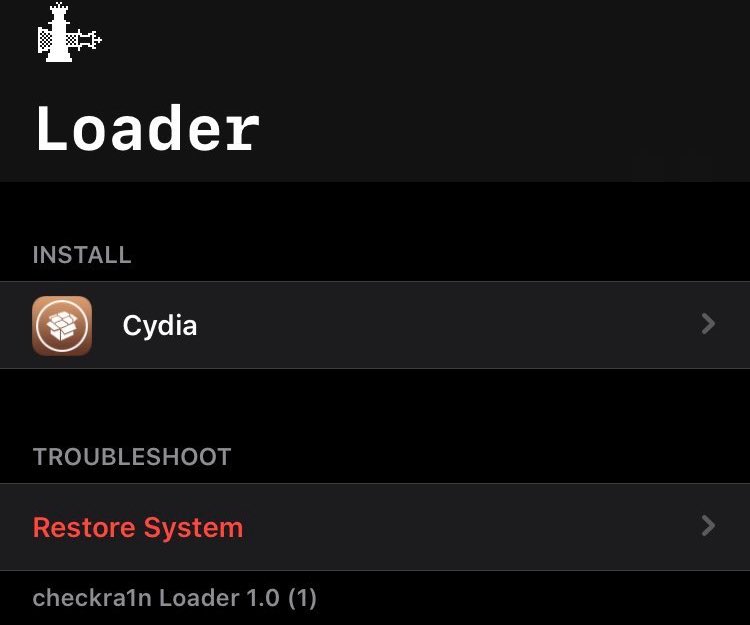
Proceed to open the app and tap on Cydia to install the package manager. Once installed, you will be done with the jailbreaking process.

Cydia

How to Jailbreak iOS 13.6 on iPhone or iPad Using Checkra1n

Here’s how to use checkra1n to jailbreak iOS 13.6 for all types of Apple users from A5 to A11.

Jailbreak Compatible Devices:

  • iPhone 6s
  • iPhone 6s Plus
  • iPhone 7
  • iPhone 7 Plus
  • iPhone SE
  • iPhone 8
  • iPhone 8 Plus
  • iPhone X
  • iPad Air 2
  • iPad Air 3
  • iPad Pro
  • iPad mini 4

Preparations Before Jailbreaking:

  • Delete any iOS 13.6 OTA update file from Settings > Storage and reboot your device before attempting to jailbreak it.
  • A computer running macOS.
  • The latest version of iTunes installed if using a Mac running anything prior to macOS Catalina.
  • Make sure to create a backup of all important data on your device before proceeding with the jailbreaking steps.

Processes of Checkra1n Jailbreak

Step 1:

Launch your web browser of choice, jump on over to the Checkra1n website, and download the latest version of the jailbreak tool. Here’s the URL: checkra.in

get checkra1n

Step 2:

Once you have downloaded the tool, grab the downloaded DMG file and pull it into your /Applications folder.

Step 3:

You may get an error saying that the Checkra1n app is not supported or trusted by the operating system. If you do, don’t worry and simply follow these steps, otherwise, skip straight to step 4:

  • Launch the System Preferences app and head into the Security & Privacy option.
  • Click Open Anyway followed by Open and enter your password when prompted.
  • Run the checkra1n app again, and it should work as intended.

Step 4:

Once you have ensured that the Checkra1n app is running, connect your iPhone or iPad to your Mac.

Step 5:

Jump into Options and check the “Allow untested iOS/iPadOS/tvOS versions” option. Once you have made sure that the option is checked, select Back.

Step 6:

Click the Start button in the Checkra1n app and then select OK.

Step 7:

Select Next and then follow the provided on-screen instructions. This will put your iPhone into DFU mode and will have varying steps depending on what device you are trying to jailbreak.

Step 8:

Once Checkra1n detects that your device is in DFU mode, it will go about its business and jailbreak the device. This will result in the connected device being rebooted a few times. This is entirely normal so keep that in mind.

Step 9:

Once it completes, unplug the device from your machine and launch the checkra1n app on your iPhone. Tap Cydia to install the iconic Cydia store and then tap Install Cydia to complete the process.

Cydia

How to Jailbreak iOS 13.5.1 ~ iOS 13.7 on iPhone or iPad Using Checkra1n

Here’s how to use checkra1n to jailbreak iOS 13.5.1 ~ iOS 13.7 for all types of Apple users from A5 to A11.

Jailbreak Compatible Devices:

  • iPhone 6s
  • iPhone 6s Plus
  • iPhone 7
  • iPhone 7 Plus
  • iPhone SE
  • iPhone 8
  • iPhone 8 Plus
  • iPhone X
  • iPad Air 2
  • iPad Air 3
  • iPad Pro
  • iPad mini 4

Preparations Before Jailbreaking:

  • Delete any iOS 13.5.1 ~ 13.7 OTA update file from Settings > Storage and reboot your device before attempting to jailbreak it.
  • A computer running macOS.
  • The latest version of iTunes installed if using a Mac running anything prior to macOS Catalina.
  • Make sure to create a backup of all important data on your device before proceeding with the jailbreaking steps.

Processes of Checkra1n Jailbreak

Step 1:

Head over to the checkra1n website and download the latest version of the jailbreak on your Mac.

get checkra1n

Step 2:

Once downloaded, open the checkra1n dmg file, drag the app into your Applications folder and run it.

Step 3:

If you receive an error suggesting that the app is not supported or trusted, follow these steps, otherwise skip to step 4:

  • Open System Preferences and click Security & Privacy.
  • Click Open Anyway followed by Open and enter your password when prompted.
  • Now try running the checkra1n app again, and it should work as intended.

Step 4:

With the app now running, connect your iPhone to your Mac using an official Apple Lightning cable.

Step 5:

Head to Options and check the “Allow untested iOS/iPadOS/tvOS versions” option. Once done, click Back.

Step 6:

Now click the Start button in the checkra1n app, followed by OK to confirm.

Step 7:

Click Next and from there onward, simply follow the on-screen instructions shown in the checkra1n app. This will put your iPhone into DFU mode.

Step 8:

Once in DFU mode, the cheakra1n app will begin to jailbreak your phone, and once the process completes, your iPhone will restart.

Step 9:

Go ahead and unplug your iPhone, launch the checkra1n app on your iPhone, and tap Cydia to install the store. Simply tap Install Cydia to complete the installation process.

Cydia